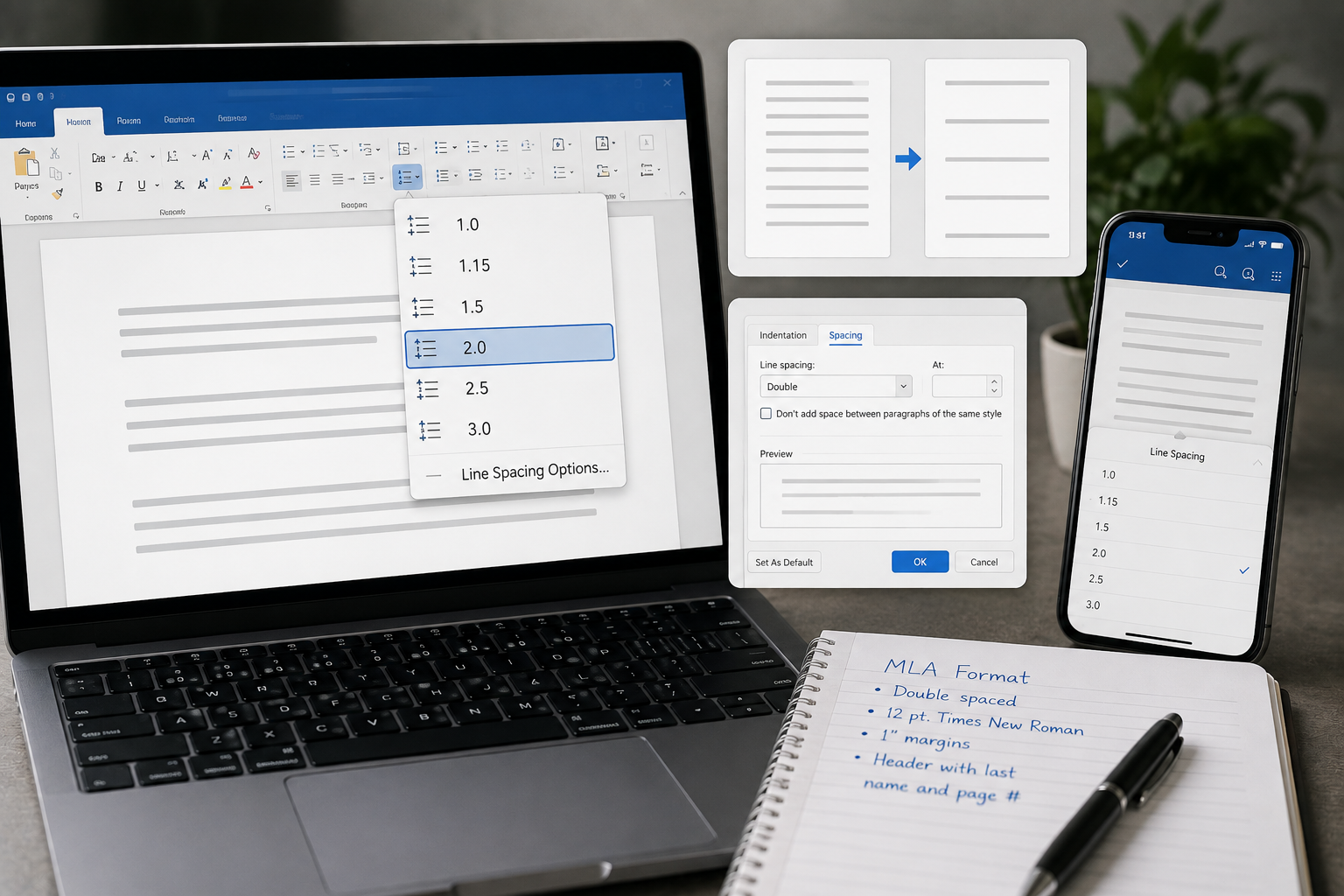
Select your text, open Format > Line & paragraph spacing > Double, and you’re done. On a keyboard, it’s even faster: Ctrl+2 on Windows or Cmd+2 on Mac. That’s the whole answer for most people. Below is everything else the top results skip — mobile steps for every device, why a doc sometimes double-spaces on its own, and the exact settings MLA graders actually want.
Quick answer: To double space in Google Docs, highlight the text, then use Format > Line & paragraph spacing > Double or press Ctrl+2 (Windows/Chromebook) / Cmd+2 (Mac). It’s built in, free, and takes seconds.
How to double space on docs
There are two reliable ways, and neither costs anything:
- Menu path: Select the text → Format → Line & paragraph spacing → Double. Or click the line-spacing icon in the toolbar (the up/down arrows next to horizontal lines) and choose Double.
- Keyboard shortcut: Ctrl+2 on Windows and Chromebook, Cmd+2 on Mac. This is the single fastest method and, oddly, the one almost every competing guide leaves out.
Want the entire document double spaced? Press Ctrl+A (or Cmd+A) first to select everything, then apply either method.
What you actually need
Not much. Double spacing is a core formatting feature, not a paid extra.
- A free Google account and edit access to the document. If you can only view it, make a copy (File > Make a copy) or ask the owner for edit rights.
- Google Docs on the web, iPhone, iPad, or Android app. No add-ons, extensions, or downloads.
- Nothing else. You can apply it to the whole document or just selected paragraphs.
Step-by-step process for every device
Desktop (Windows, Mac, Chromebook)
- Open your document at docs.google.com.
- Highlight the text you want to change, or press Ctrl+A / Cmd+A to select all of it.
- Click Format in the top menu.
- Hover over Line & paragraph spacing.
- Click Double. The change is instant and saves automatically.
Prefer shortcuts? Just select the text and hit Ctrl+2 (Windows/Chromebook) or Cmd+2 (Mac). For the record, Ctrl+1 is single spacing and Ctrl+5 is 1.5 — handy if you overshoot.
How to double space in docs on iPhone
- Open the doc in the Google Docs app and tap the blue pencil icon to edit.
- Select the text (tap and hold, then drag the handles), or tap into a paragraph.
- Tap the Format icon — the A with horizontal lines — at the top.
- Choose the Paragraph tab.
- Under Line spacing, tap the up arrow until it reads 2.0.
How to double space in docs on Android
The flow is identical to iPhone. Tap the pencil to edit, select your text, tap the Format icon (the A with lines), open the Paragraph tab, and set Line spacing to 2.0. The only difference is the icon styling, which varies slightly by phone.
How to double space in docs on iPad
The iPad app looks a little different because of the wider layout, so it earns its own steps:
- Open the document and tap the pencil to enter edit mode.
- Select your text.
- Tap the Format (A) icon in the top toolbar — on iPad it sits alongside the other formatting tools rather than in a compact menu.
- Open Paragraph, find Line spacing, and set it to 2.0.
Part of a document vs. the whole thing
Double spacing only applies to what you select. To change just one section, highlight those paragraphs before applying. To change everything, select all first. Google Docs remembers spacing per paragraph, so you can mix single and double spacing in the same file with no penalty.
Costs and timing
This is the question no competitor answers directly, so here it is plainly: double spacing in Google Docs is completely free. You do not need Google Workspace, a premium plan, or any paid feature. It’s part of the standard editor for every account.
- Cost: $0. No plugins, no downloads, no subscription.
- Time: Under 10 seconds, whether your document is one page or 200. Selecting all and applying the shortcut is instant.
Common mistakes (and the auto-spacing fix)
Confusing line spacing with paragraph spacing
This is the big one, and it’s the answer to “why is my Google Doc double spacing on its own?” Google Docs has two separate settings. Line spacing controls the gap between lines inside a paragraph. Space before/after paragraph adds a gap between paragraphs. If your document looks double spaced but you never set it, you almost certainly have paragraph spacing turned on. Fix it under Format > Line & paragraph spacing — use “Remove space before paragraph” and “Remove space after paragraph,” or open Custom spacing and set both to 0.
Forgetting to select all
If only part of your document changed, you didn’t select the whole thing. Press Ctrl+A / Cmd+A and reapply.
Pasted formatting overrides your spacing
Copying from Word, a website, or another doc drags along its own formatting. If spacing keeps reverting, paste with Ctrl+Shift+V (paste without formatting), then apply double spacing yourself.
Expecting it to stick for new documents
Applying double spacing changes only that one file. To make it the default, format one paragraph the way you want, then go to Format > Paragraph styles > Options > Save as my default styles. Future documents inherit it.
Missing the exact MLA settings
MLA is stricter than “just double space.” The default 1.15 line spacing plus 11pt paragraph spacing will fail a proper MLA check. Set it up like this:
- Line spacing: 2.0 (Double)
- Space before paragraph: 0 pt
- Space after paragraph: 0 pt
- No extra blank line between paragraphs — the double spacing already creates the required gap
Same math applies to APA. The trap is the extra paragraph spacing, which makes body text look inconsistently gapped even when line spacing is correct.
The bottom line
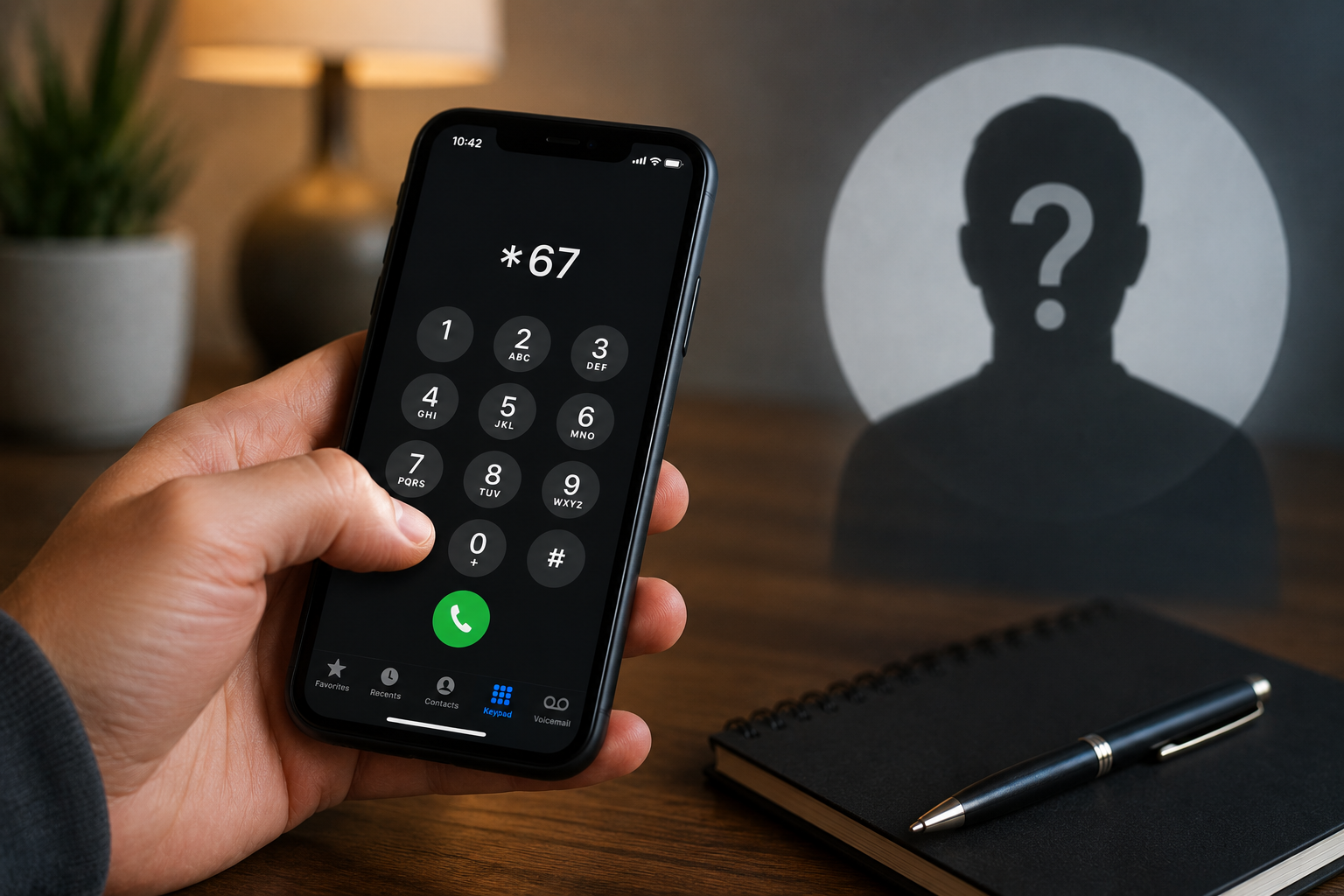
Double spacing is a two-second job once you know where it lives: Format > Line & paragraph spacing > Double, or Ctrl+2 / Cmd+2. The only real gotcha is telling line spacing apart from paragraph spacing, and now you can. For more everyday tech walkthroughs, browse our guide to what Star 67 does and our plain-English explainers on what ILY means in a text and what MBN means.
FAQs
How do I double space in Google Docs on my phone?
Open the app, tap the pencil to edit, select your text, tap the Format icon (the A with lines), open the Paragraph tab, and set Line spacing to 2.0. The steps are the same on iPhone and Android.
What is the keyboard shortcut for double spacing in Google Docs?
Select your text and press Ctrl+2 on Windows or Chromebook, or Cmd+2 on Mac. Ctrl+1 returns you to single spacing and Ctrl+5 sets 1.5.
Why is my Google Doc double spacing automatically?
It’s almost always paragraph spacing, not line spacing. Go to Format > Line & paragraph spacing and choose ‘Remove space before paragraph’ and ‘Remove space after paragraph,’ or set both to 0 under Custom spacing.
How do I set double spacing for MLA format in Google Docs?
Set line spacing to 2.0, and set both space-before and space-after paragraph to 0 pt. Don’t add a blank line between paragraphs. The default 1.15 spacing with 11pt paragraph gaps won’t meet MLA rules.
Does double spacing cost anything or require a paid Google account?
No. Double spacing is a standard, free feature in Google Docs for every account. You don’t need Google Workspace, a subscription, or any add-on, and it works on web and mobile.
How do I make double spacing the default for all new docs?
Format one paragraph with double spacing, then go to Format > Paragraph styles > Options > Save as my default styles. New documents you create will use it automatically.