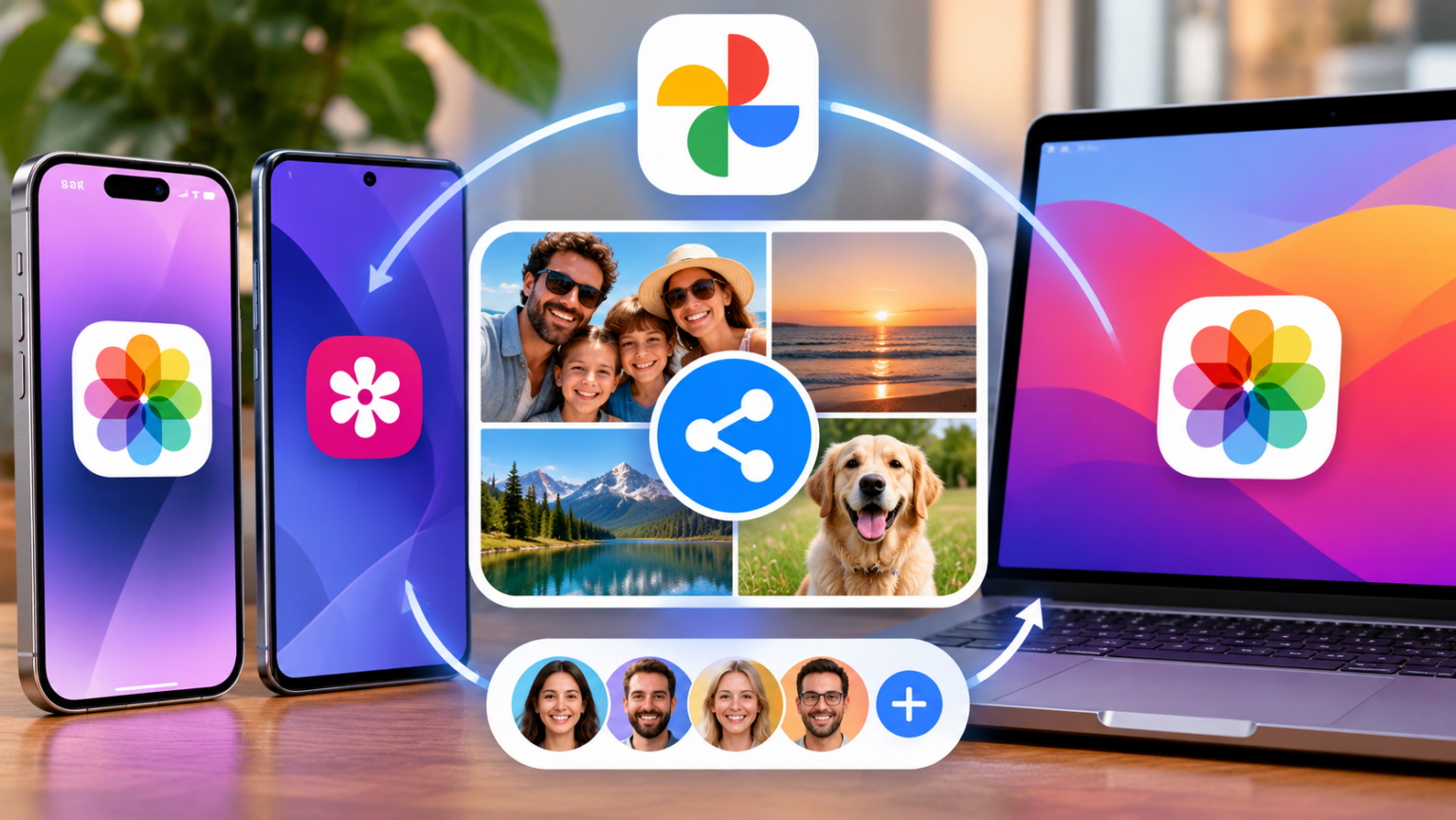
If everyone in the group uses an iPhone, iPad or Mac, open Photos, tap +, choose New Shared Album, name it and invite people. If anyone uses Android, or you just want to text out a link, create the album in Google Photos instead, because it works the same way on every phone and in any web browser.
That one choice causes most problems with shared albums. Apple Shared Albums work very well inside Apple’s ecosystem but are awkward outside it. Google Photos works on any device. Samsung Gallery only makes sense if everyone has a Galaxy phone.
| App | Best for | How guests join | Who can add photos |
|---|---|---|---|
| Apple Photos (iCloud Shared Albums) | Groups where everyone uses Apple devices | Invite by Apple Account email or phone number, or a public web link (view only) | Subscribers with an Apple Account, if you allow it |
| Google Photos | Mixed iPhone and Android groups, weddings, events | Invite or share a link; viewers don’t need an account | Anyone with a Google account, if collaboration is on |
| Samsung Gallery | Groups where everyone uses a Galaxy phone | Invite from Samsung contacts or share a link | Members signed in to a Samsung account |
Note: menu labels change between app updates. Apple and Google have both moved albums between tabs such as “Library,” “Collections” and “Sharing” in recent versions. If a button isn’t where we describe it, look for a + or Create button at the top of the screen.
Requirements before you start
Apple (iPhone, iPad, Mac)
- A reasonably current version of iOS, iPadOS or macOS, and you need to be signed in to iCloud.
- Shared Albums must be switched on. On iPhone, go to Settings, tap your name, then iCloud, then Photos, and turn on Shared Albums. On some newer iOS versions the toggle is under Settings, then Apps, then Photos. On a Mac, open Photos, then Settings, then iCloud.
- You don’t need iCloud Photos (full library sync) turned on. Shared Albums is a separate switch.
Google Photos
- A Google account and the Google Photos app (iPhone or Android), or photos.google.com in a browser.
- Guests can view a shared link without signing in. To add photos or comment, they need a Google account.
Samsung Gallery
- A Samsung account signed in on the phone and a recent version of the Gallery app. Every member needs a Samsung account too.
Florida note: Shared albums work well for keeping snowbird relatives up to date, or for sending family photos of hurricane prep and damage. But don’t treat a shared album as your insurance record. Apple shrinks shared photos (more on that below), so keep the full-resolution originals in your own backed-up library.
Step-by-step: how to create a shared album
How to create a shared album on iPhone or iPad
- Open Photos and go to your albums. On newer iOS versions, scroll down to the Albums or Shared Albums section.
- Tap +, then New Shared Album.
- Name the album and tap Next.
- Add people from your contacts, using the email address or phone number linked to their Apple Account. Tap Create.
- Open the album, tap + and select photos and videos. You can add a comment, then tap Post.
Shortcut: select photos anywhere in your library, tap the Share button, then choose Add to Shared Album.
After the album is created, open it and tap the People icon to change who can do what. Switch on Subscribers Can Post if you want others to add photos. Switch on Public Website to get an icloud.com link that anyone, including Android users, can open in a browser to view.
How to create a shared album on a Mac
- Open Photos and select the photos you want to share.
- Click the Share button in the toolbar, then Shared Albums, then New Shared Album.
- Name the album, add invitees and click Create.
- Select the album under Shared Albums in the sidebar, then click the People button to turn on posting by subscribers or the public website.
How to create a shared album in Google Photos (iPhone, Android or web)
- Open Google Photos and tap + (Create) at the top. Choose Shared album, or create an Album and share it afterward.
- Name the album and add photos.
- Tap Share. Pick people to invite, or tap Create link to copy a link you can paste into a text, email or group chat.
- Open the album’s options menu and decide whether Collaborate (others can add photos) and Link sharing stay on.
How to create a shared album in Samsung Gallery
- Open Gallery, tap the menu (three lines) and choose Shared albums, or find it under the Albums tab, depending on your version.
- Tap + or Create, name the album and tap Create.
- Invite members from your contacts or share a link, then add photos.
Samsung limits shared membership and storage more tightly than Google does, and it doesn’t work well with iPhones. Use it only if every member has a Galaxy phone.
How to create a shared album between iPhone and Android
You have two options:
- Best: use Google Photos. iPhone users install the app, and everyone can view and contribute. The photos stay at higher quality than Apple’s shared copies.
- View-only alternative: Apple’s Public Website. Turn it on in your iCloud Shared Album and send the link. Android users can browse and download, but they can’t add photos.
How to create a shared album for wedding guests or events
For a wedding, reunion or youth sports season, we recommend Google Photos for three reasons. It works on every phone, guests can view without an account, and contributors only need a Google login, which most people already have.
- Create the album a week ahead and add one or two photos so it doesn’t open empty.
- Turn on Collaborate, copy the link and turn it into a QR code (Chrome and most free QR tools can do this). Put the code on table cards or the program.
- Print a one-line instruction: “Scan, tap Join, add your photos. A Google login is needed to upload.”
- About two weeks after the event, turn off collaboration so the album stops changing, and download everything to your own storage.
Costs and timing
Creating a shared album is free on all three platforms. The real question is storage.
- Apple: Shared Albums don’t count against your iCloud storage. The trade-off is quality: Apple shrinks photos to 2048 pixels on the long side (panoramas can be wider), limits videos to 720p, and caps videos at 15 minutes. The free 5 GB iCloud tier is enough for shared albums.
- Google Photos: Photos count against the storage of the person who uploaded them, and Google’s free 15 GB is shared with Gmail and Drive. If a big event fills your space, Google One’s 100 GB plan costs about $1.99 a month.
- Samsung: Shared content has its own capped allowance, which you can check on the Shared albums screen.
| Limit | Apple Shared Albums | Google Photos |
|---|---|---|
| Photos and videos per album | 5,000 | 20,000 |
| People per album | Up to 100 subscribers | Large groups supported; no practical cap for typical use |
| Image quality | Reduced (2048 px long edge) | Same as your backup setting |
| Video length | Up to 15 minutes | No length cap; counts toward storage |
| Counts against storage | No | Yes, the uploader’s |
Limits change, so check Apple’s and Google’s help pages before planning a large event. Setup takes about two minutes. Uploading depends on your connection: a few hundred photos over home Wi-Fi usually take a few minutes, and on cellular they can take much longer.
Common mistakes
- Trying to convert a regular album. Apple can’t turn an existing album into a shared one. Open the album, tap Select, then Select All, then Share, then Add to Shared Album. In Google Photos you can share any existing album directly.
- Choosing Apple for a mixed group. Android relatives get a view-only web page and can’t contribute. Pick Google Photos from the start.
- Forgetting the Shared Albums toggle. This is the most common reason an invite “never arrives” on an iPhone. Check the toggle on both your phone and the recipient’s.
- Sharing a link too widely. Anyone who has the link can open it, including people it was forwarded to. Turn off link sharing or the public website when the event is over.
- Leaving location data in photos. In Google Photos, open Settings, then Sharing, and hide location data. On iPhone, tap Options in the share sheet and turn off Location before sending photos of your home or your kids’ school.
- Ignoring notifications. A busy event album can send dozens of alerts. Mute them in the album’s settings rather than leaving the album.
For more how-to guides, see our Technology section. You may also like our explainers on what Shared Focus status means and how to return an Audible book. If you’re planning a holiday trip that needs a group album, our guide to Christmas markets in the US has the dates.
FAQs
Can you make a shared album between iPhone and Android?
Yes. The simplest way is a Google Photos shared album, which works on both. iPhone users install Google Photos, and everyone can view and add photos. If you’d rather keep it in Apple Photos, turn on Public Website in your iCloud Shared Album and send the link. Android users can view and download photos but can’t add any.
How many people and photos can a shared album hold?
An Apple iCloud Shared Album holds up to 5,000 photos and videos and up to 100 subscribers. A Google Photos shared album holds up to 20,000 photos and videos. Limits change occasionally, so check Apple’s and Google’s help pages before a large event.
Does a shared album use my storage?
Apple Shared Albums don’t count against your iCloud storage, but Apple shrinks the photos. In Google Photos, each photo counts against the storage of the person who uploaded it, and the free 15 GB is shared with Gmail and Drive.
Can people without an Apple ID or Google account see a shared album?
Yes, but only to view. Turn on Public Website in Apple Photos, or share a link from Google Photos, and anyone can open the album in a web browser. To add photos, people need an Apple Account (for Apple) or a Google account (for Google Photos).
How do I turn a regular album into a shared album?
On iPhone you can’t convert it directly. Open the album, tap Select, then Select All, then Share, then choose Add to Shared Album and pick or create a shared album. In Google Photos, open any album and tap Share, and it becomes shared.
Why isn’t my shared album showing up on my iPhone?
Usually the Shared Albums setting is off. Go to Settings, tap your name, then iCloud, then Photos, and turn on Shared Albums. On some iOS versions it’s under Settings, then Apps, then Photos. Also check that the invite went to the email or phone number linked to your Apple Account, and that both devices are online.